How do you read tonight's sky with the NowSky Sky view?
The Sky view draws the sky exactly as it appears from a chosen place at a chosen moment. Set the location and time first, drag to look around, then tap any object to see its name, a short description and its rise and set times. Combined with time playback and the chips along the bottom, it shows in advance which direction to face tonight and when.
Why place and time come first
What the sky looks like depends heavily on where you stand. The farther north you are, the higher Polaris sits, and some southern stars never clear the horizon at all. From London (51.5°N) the sky looks noticeably different from New York (40.7°N), and picking Sydney or Cape Town turns many familiar constellations upside down while revealing stars that northern observers never see.
The location button near the top opens a list of places, sorted with the closest ones first. Choosing the nearest city is accurate enough for naked-eye observing, and the choice is saved for your next visit.
Time is set from the date chip at the top left. The date and time are chosen together and only take effect after Apply. To preview the sky at 10 pm tonight, for example, keep the date, change the time to 22:00 local time and apply it.
Dragging around and tapping for the info card
Dragging left, right, up or down turns the sky in that direction. The mouse wheel or a two-finger pinch zooms in and out, and the ruler along the bottom does the same when dragged sideways; the number on the ruler is the current zoom.
Tapping a star or planet places a marker on it and brings it to the centre of the view. A card with its name and a one-line description appears at the bottom and fades after five seconds or as soon as you drag. Tapping a constellation adds chips for its key stars to the card, so you can step straight to its brightest members.
The card's Details button opens coordinates such as right ascension and declination, the distance, rise and set times and a photo. Closing the card with its ✕ leaves a small Info | ✕ button at the bottom right: Info reopens the card and ✕ clears the selection, as does tapping empty sky. The strip at the very bottom of the screen is reserved for controls, so taps there never select an object.
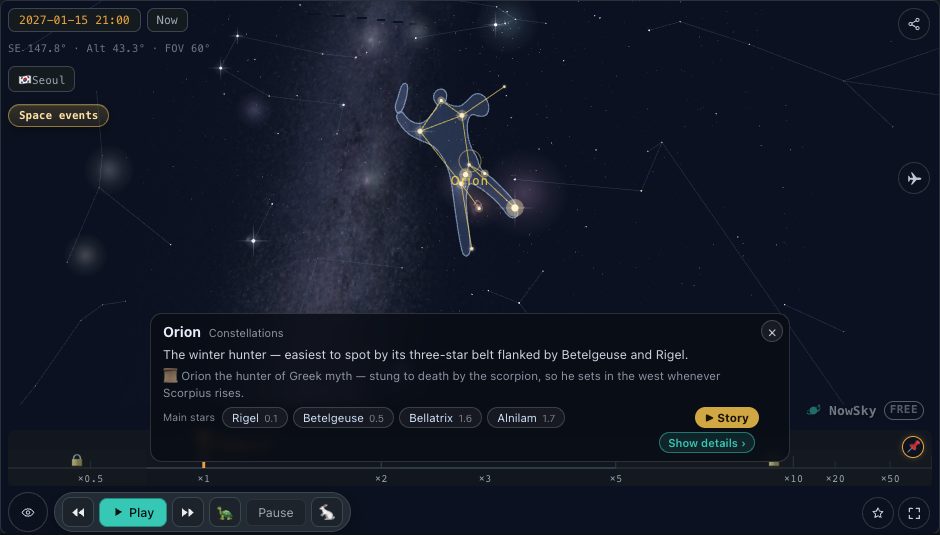 ▶ Open in the simulator
 Running time to watch the sky turn
The play button on the bottom strip starts time running, and the stars rise in the east and set in the west just as they do over a real night. Pressing the same button again freezes the sky at that moment. The number in the middle is the playback speed; tapping it opens a list of faster settings.
Holding the rewind button runs time backwards until you let go. Fast forward works the same way in the other direction, and a longer hold brings up a slider for choosing how fast it scrubs. Within a few seconds you can see when a constellation crosses the southern sky after sunset, or what time the Moon rises.
However far you travel, the Now button returns the sky to the present moment. The playback speed is remembered separately, so set it back from the speed list if you want time to run normally again.
Seeing the stars behind daylight
Choose a daytime hour and the view behaves like the real sky: a blue background with hardly a star in sight, because sunlight scattered by the air brightens the whole sky. The daytime-sky button lifts that light away and shows the stars behind it, so the positions of stars and constellations can be checked even at noon.
The button is especially useful for seeing which constellation the Sun is passing in front of. As Earth orbits the Sun, the Sun's background shifts slowly through the year, and the constellations on the Sun's side of the sky are hard to see at night during that season. With the daytime sky on, moving the date forward a few months at a time shows the Sun drifting from one constellation to the next, which also explains why the night sky changes with the seasons.
Pointing the phone with compass tracking
On a phone, the compass button at the bottom right turns on tracking. The view then follows wherever the device points, so raising the phone toward a bright star shows its name immediately. The first time, the browser asks for permission to use the orientation sensor.
Dragging the screen pauses tracking and turns the button orange; pressing it again resumes following the phone. Lowering the phone toward the ground pauses vertical tracking until you lift it again, which keeps the sky steady while you glance down as you walk.
Phone compasses can be thrown off noticeably by nearby metal or a magnetic case. If the screen and the real sky disagree slightly, lining things up by eye against one bright star is the most reliable fix.
Search, sky events and the bottom chips
The magnifier opens a search box. Typing a name lists matches, and choosing one turns the view to that object and selects it. The sky events button lists solar and lunar eclipses in date order; picking one jumps to the right time and place to watch the Sun and Moon meet. According to NASA, the total solar eclipse of 2 August 2027 crosses southern Spain, North Africa and the Middle East, with up to 6 minutes 23 seconds of totality.
The chips along the bottom decide what is drawn. Constellations cycle through off, lines and bold. Labels run from 0 (no names) to 3 (everything on screen). Body size 0 shows planets, the Sun and the Moon at their true apparent size, which makes planets almost dots, while step 1 enlarges them a little for visibility. Star look moves from plain dots through glow and diffraction spikes to twinkling, each step prettier and heavier for the device.
Background stars are drawn down to magnitude 6.5, close to the naked-eye limit. The Milky Way chip shows a simple band at step 1 and a real panorama photograph at step 2; with Deep sky switched on and the Milky Way at step 2, zooming into a nebula or galaxy marker reveals its actual photograph in place. Arrows adds edge pointers toward objects that are off screen. The chips hide after a while and come back with a tap on the lower part of the screen. As you use the view, the browser's address bar updates to hold the time, place and selected object, so copying that address and sending it reopens the same sky.
Try it in the simulator
- Open tonight's sky →Tonight's sky from your chosen location
- Select Orion →Orion selected, with a card listing its key stars
- Tonight's Moon →The Moon selected, with its phase and rise and set times
- Replay the 2027 eclipse →The Sun and Moon meeting on 2 August 2027
FAQ
- Why does the screen show more stars than I can see outside?
- The Sky view draws stars down to magnitude 6.5, close to the limit at a truly dark site. In a city, skyglow hides most of the fainter ones, so it works best to match the brightest stars on screen to the real sky first.
- Pausing playback does not bring me back to the present.
- Pause freezes the sky at whatever moment playback had reached. The Now button returns to the present, and the speed list sets the playback rate back to normal.
- I cannot find the compass button.
- Compass tracking relies on an orientation sensor, so it appears on phones and tablets rather than on desktop computers. On a phone it also needs the browser to allow sensor access.