How do you travel through time in the solar system with Orbit view?
Orbit view shows the bodies of the solar system moving at their real positions and speeds, with time that can be pushed forward or back. Tapping a body makes the camera follow it, the bottom strip plays or rewinds time, and the space events list replays eclipses and mission milestones at the right moment and framing.
Sideways drags spin, vertical drags tilt
Dragging sideways spins the plane of the solar system in place, while dragging up or down tilts it. Seen from above, the orbits form near-concentric rings; seen edge-on they collapse almost into a single line. Tilting the view this way makes it obvious that the planets orbit in nearly the same plane.
The mouse wheel or a pinch zooms in and out. The sliders on the right also control spin and tilt, and the ruler at the bottom shows the current width of the view. When spin, tilt and zoom get tangled, the reset button restores the default framing.
Switching on the grid toggle draws reference lines for judging distance, each square labelled in astronomical units. One AU is the average distance between the Sun and Earth, about 149.6 million kilometres, a gap light crosses in roughly 8 minutes 19 seconds.
Tap to follow, double-tap for the moons
A single tap on a planet or dwarf planet locks it to the centre of the screen and the camera follows it. When time runs, that body stays put and everything else appears to move around it. Tapping empty space releases the follow.
A double tap on a planet opens its moon system. Double-tapping Jupiter shows Io, Europa, Ganymede and Callisto, the four moons Galileo first observed in 1610, circling the planet. With the auto-moons toggle on, moons appear by themselves as you zoom toward a planet.
While following, zooming in far enough brings up a Watch with button that frames the followed body together with the Sun or one of its moons. The up and down arrows at the bottom left step back and forth through the bodies and events you opened recently.
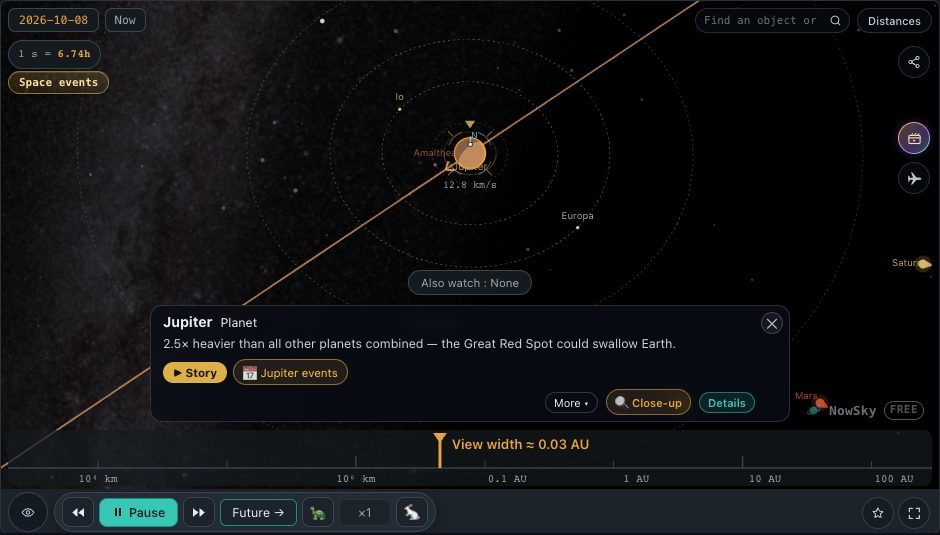 ▶ Open in the simulator
 Comparing orbital periods with play, speed and rewind
Pressing play on the bottom strip sets the planets moving at their true orbital periods. The inner planets race ahead: Mercury laps the Sun in about 88 days, while Neptune, which takes roughly 165 years per orbit, barely seems to move.
Tapping the number in the middle opens the speed list. Holding the rewind button runs time backwards and holding fast forward runs it ahead, with a longer hold bringing up a slider for the scrub rate. Pressing play again freezes the arrangement, which makes it easy to stop at a moment when several planets line up on one side of the Sun.
The date chip at the top left opens a form for choosing a date and time together; the view moves only after Apply. Orbit view keeps time in Coordinated Universal Time (UTC). Leaving the present makes a Now button appear for an instant return to today, while the playback speed stays where it was until you reset it from the list.
Following a probe from its launch
Switching on the probes toggle draws the spacecraft currently flying through the solar system and their tracks. Following a probe adds a launch button to its info card, which jumps back to the moment of lift-off so the whole journey can be replayed. Moments more than three years from the present are reserved for members, so on a free account this works only for recent launches.
Voyager 1 launched on 5 September 1977, flew past Jupiter on 5 March 1979 and Saturn on 12 November 1980. With the probes toggle on, its track is drawn bending around those two giants alongside their orbits.
The Lines toggle cycles through four steps: orbits, orbits plus trails, trails only, and off. In the trails step the paths that bodies and probes have actually travelled remain on screen, which makes it easy to see where a probe's route meets a planet's orbit.
Replaying eclipses and milestones from Space events
The space events button opens a list sorted by kind: solar and lunar eclipses, planetary conjunctions and probe milestones. Choosing one moves the view to that moment and framing and plays the event. When it is over, the Now button returns to today.
Choosing an eclipse shows the Sun, Earth and Moon falling into line. To see the Sun and Moon overlap as they would from the ground, use the same list in the Sky view; viewing the geometry from outside in Orbit view alongside it makes it clearer why eclipses happen only occasionally.
Asteroid and comet toggles, distance view and the switch outward
The bottom toggles decide which bodies are drawn. Asteroids adds individual objects between Mars and Jupiter; Dwarf planets adds Pluto, Eris, Ceres and their kind; Comets adds long, stretched orbits that run far off screen; Belts and clouds shades the asteroid belt and the Kuiper belt as bands. Halley's Comet last passed perihelion on 8 February 1986 and returns on 28 July 2061.
The eye button at the bottom left opens View filters for distance and size scaling, shading and perspective. At true scale the planets are tiny compared with their orbits and almost vanish, so an adjusted size is usually easier for reading the layout. The distance-view button switches to a screen that lays planet and moon distances out in a single line.
Zooming out well beyond Neptune brings up a button at the bottom that, after a confirmation, continues into the interstellar 3D map of the stars around the Sun. While you use the view, the browser's address bar keeps the time and the followed body in the URL, so copying that address and sending it reopens the same scene.
Try it in the simulator
- Follow Earth →Earth followed through its yearly orbit
- Jupiter and its moons →Jupiter followed, with the Galilean moons circling
- Halley's orbit →The comet swinging in toward the Sun and back out
- Follow Voyager 1 →Voyager 1's position and route
FAQ
- Why do the planets look bigger than they should?
- At true scale the planets are far too small next to their orbits to see even as dots, so the default view enlarges them. View filters can switch them back to true size.
- The time in Orbit view differs from the Sky view.
- Orbit view keeps time in UTC, while the Sky view uses the local time of the chosen site. The moment is the same; only the clock it is written in differs.
- I cannot see any moons.
- Double-tap a planet to open its moon system, or switch on Auto moons and zoom toward the planet. At the scale of the whole solar system, the moons sit too close to their planets to be seen separately.
Related reading
- Object Jupiter
- Object Voyager 1
- Object Halley's Comet
- Sky news Voyager 1 launch